You pull your device from your pocket at 2:00 PM, expecting a comfortable 60% charge, only to feel a localized, radiating warmth through the glass and the textured grit of your phone case. The battery icon glows an angry crimson at 14%. You haven’t watched a single match since the weekend, yet your device feels like it has been running a heavy processing load in the summer sun. The phantom drain is not a dying lithium-ion cell; it is the lingering ghost of Sunday’s live stream. Swiping away the application window feels like turning off a television, but inside the silicon architecture, the broadcast is still silently fighting for signal.
The Logic Behind The Phantom Drain
There is a stubborn, mechanical misconception about how modern operating systems handle background data. We treat interface windows like physical doors. The logic dictates that if you swipe it shut, the room goes dark. But keeping a live stream ready requires constant server polling. The software continuously pings remote databases to update live scores, fetch highlight thumbnails, and maintain active login tokens.
Swiping up hides the interface, but it leaves the application’s background processes running like a car engine idling in a closed, sealed garage. It is an aggressive data grab designed purely to make the software open a fraction of a second faster the next time you tap the icon. This constant background refresh chews through battery chemistry, generating that frustrating pocket heat and degrading the physical lifespan of your device’s internal power cell.
Silencing The Idle Drain
To actually stop the bleed, you must sever the background data connection entirely. Mobile systems architect David Chen frequently points out that targeting the Background App Refresh toggle is the only guaranteed method to claw back standby time without deleting the software entirely. Here is the exact sequence to kill the phantom drain and stabilize your battery.
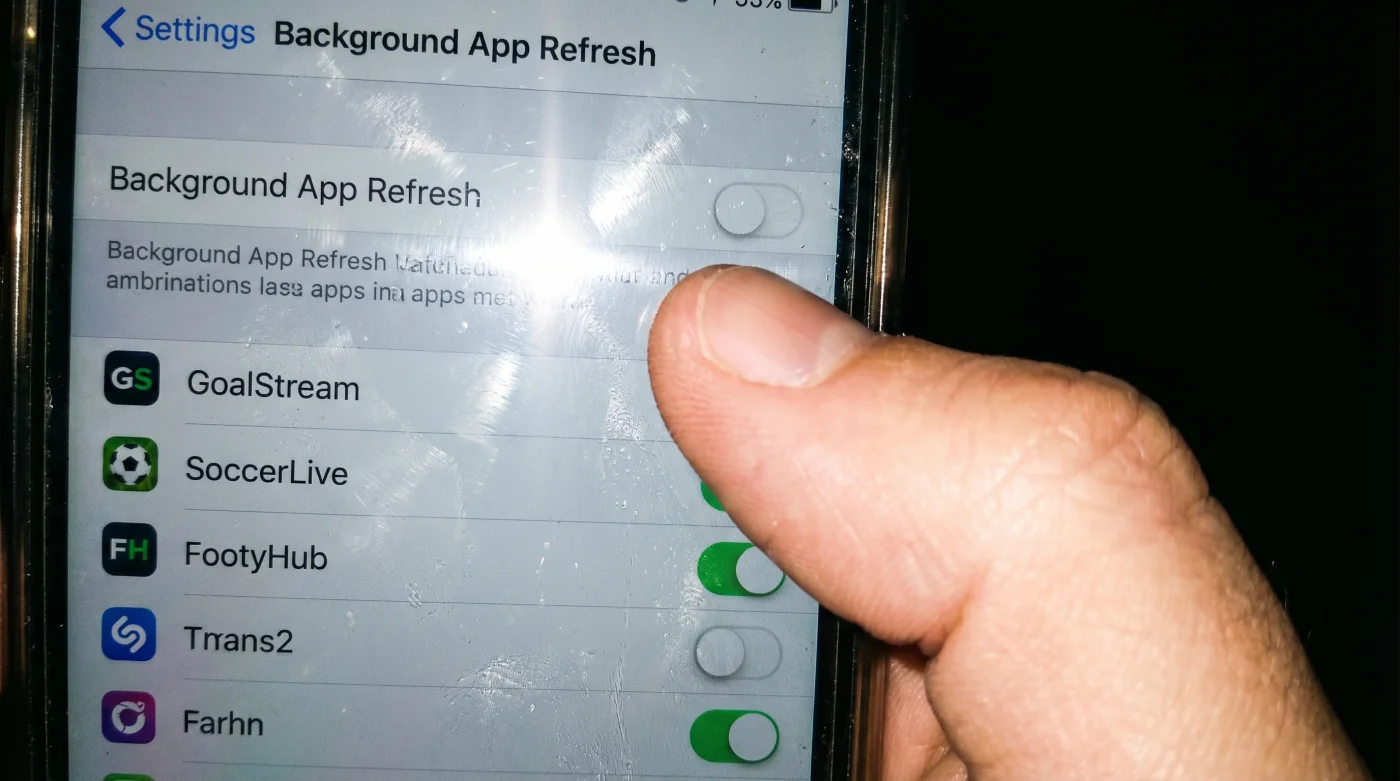
Step 1: Open your phone’s central settings, avoiding the streaming platform itself. The software wants you trapped in its ecosystem; the actual control happens purely at the system level. Step 2: Scroll down to the ‘General’ tab and locate ‘Background App Refresh’. Watch the screen visually transition to a massive list of every application currently siphoning your standby power. Step 3: Find your dedicated fútbol streaming platform in the alphabetical list. You will likely see the toggle switch sitting in the active, brightly colored position.
Step 4: Tap the toggle to turn it gray. This physically denies the application permission to poll servers while it is not actively displayed on your main screen. Step 5: Repeat this physical motion for any secondary sports tracking tools or live-score aggregators. Seeing the gray toggle switch is your guarantee that the software is truly dormant. Step 6: Force restart the device. This clears the cached random access memory where lingering, orphaned background processes from the last viewing session might still be looping endlessly.
- Boca Juniors Barcelona SC VIP Memberships Quietly Auto-Renew Indefinitely
- Camiseta Panama Mundial 2026 Replicas Contain Toxic Synthetic Dyes
- Champions Hoy Broadcasts Abruptly Change Default Streaming Resolutions
- UEFA Official Ticketing Portals Quietly Added A Nonrefundable Surcharge
- Barca vs Atlético Replay Streams Trigger Background Malware Downloads
- Liverpool vs PSG Officials Suspend Access For Thousands Tonight
- IFARHU Declaracion Jurada Approvals Demand This Specific Tax Timestamp
- Fútbol Cleat Manufacturers Deliberately Use Fast Degrading Sole Adhesives
- Disney Theme Park Wi-Fi Secretly Drains Your Battery Instantly
- Asamblea Live Feeds Conceal An Essential Policy Voting Dashboard
Troubleshooting The Disconnection
Sometimes, cutting off background data creates a slight, unavoidable delay when you finally launch the software for the weekend match. You might stare at a spinning loading wheel for three seconds while it fetches the latest schedules and authenticates your user profile from a cold start. This is normal and expected behavior that confirms your power-saving adjustments are working correctly.
If you are in a rush: Toggle on ‘Low Power Mode’ directly from your control center. This acts as a blanket, system-wide override, temporarily pausing all background refreshing without needing to hunt down individual toggles in the settings menu. For the purist: Restrict the software’s location tracking strictly to ‘While Using the App.’ Many streaming platforms constantly ping your internal GPS antenna to verify regional broadcasting rights, draining power just as fast as background data polling.
| The Common Mistake | The Pro Adjustment | The Result |
|---|---|---|
| Swiping up to force close the software | Disabling Background App Refresh via settings | Reclaims up to 20% of lost daily battery life |
| Leaving location tracking on ‘Always’ | Restricting GPS to ‘While Using’ | Stops continuous regional broadcasting polling |
| Ignoring the physically hot phone | Checking system battery usage statistics | Identifies the exact streaming culprit immediately |
Reclaiming Your Device Hardware
A smartphone should wait patiently for your command, rather than working constantly against you in the shadows. Taking away background privileges from heavy, data-hungry streaming applications restores the baseline reliability of your expensive hardware. Peace of mind comes entirely from knowing a Sunday afternoon match will not quietly sabotage your Monday morning alarm clock by draining your battery to zero.
It shifts the dynamic back to where it rightfully belongs. The technology should serve your schedule and your needs, remaining dormant, cold, and fully charged until the exact moment the referee blows the whistle for kickoff.
Frequently Asked Questions
Will disabling background refresh stop my match notifications?
No, system push notifications operate on an entirely separate software layer. You will still receive your immediate goal alerts and breaking news updates.Do I need to do this for all my applications?
Only apply this to heavy, live-updating software like sports streaming, social media, or GPS navigation. Standard utility tools use completely negligible standby power.Why does the software still drain battery while I am watching?
Active video rendering and maximum screen brightness naturally consume massive amounts of power. This specific adjustment only targets the invisible, idle standby drain.Does swiping up to close actually harm my battery?
Yes, forcing applications to execute a cold boot every single time you open them uses significantly more processing power than leaving them efficiently suspended in memory.How often should I check these background settings?
Review the list after every major operating system update or software installation. System updates occasionally reset user privacy preferences and refresh toggles back to their aggressive defaults.