The room goes quiet. You settle into the fabric of your living room couch, the faint glow of the standby light serving as the only illumination in the space. You press the power button on your remote, and the flat panel instantly floods the wall with vibrant, moving light.
Out of the box, the colors are aggressive, presenting an almost radioactive visual intensity. The motion on screen feels impossibly fluid, characters gliding across the set with the glassy smoothness of a daytime soap opera. You likely assume this hyper-real clarity is exactly what you paid for when upgrading your living room setup.
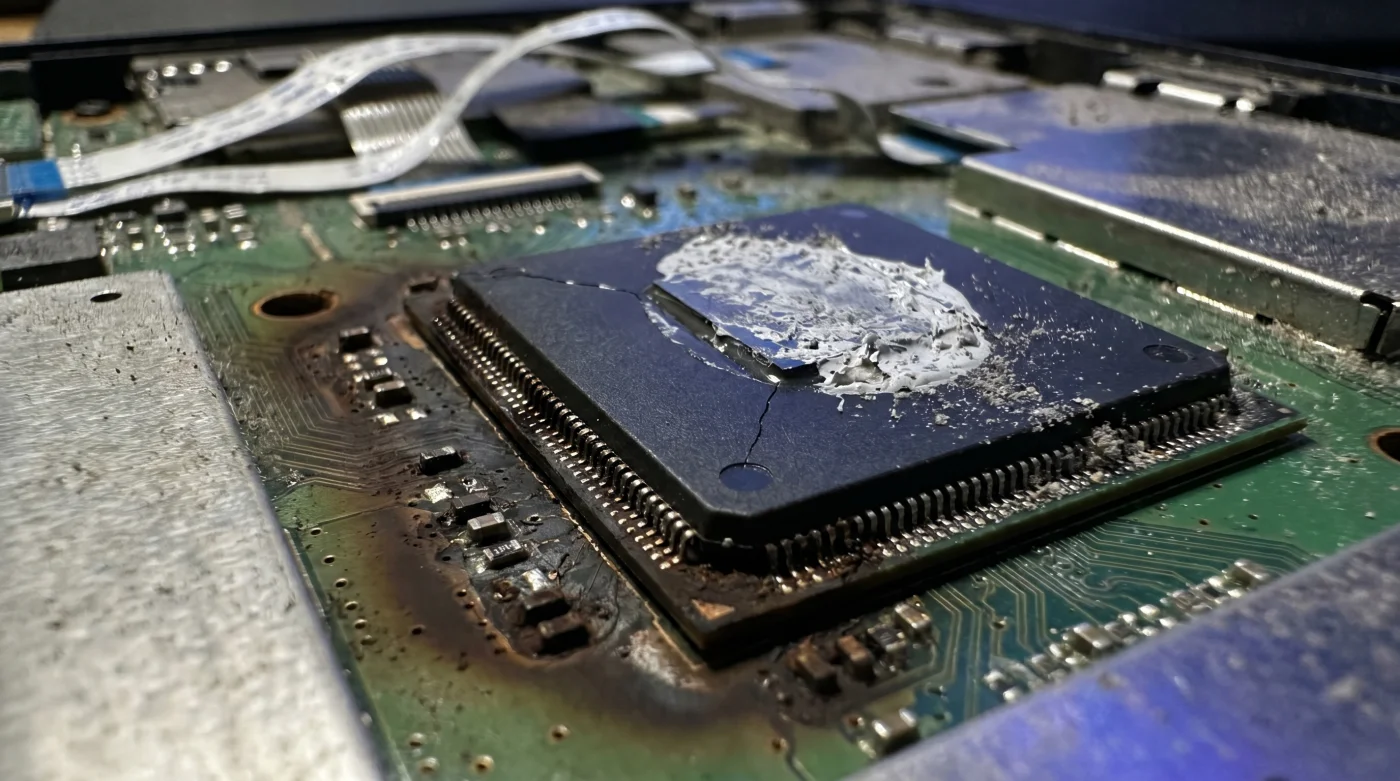
But stand up, walk over to the screen, and slide your palm gently against the back plastic casing near the input ports. That faint, vibrating heat radiating against your skin is not just the normal byproduct of a glowing backlight. It is the physical manifestation of silicon screaming under pressure.
You are witnessing the hardware equivalent of pressing a sports car’s accelerator to the floorboard while in neutral. The industry standard out-of-box setup is heavily flawed, designed to win a brightness contest on a fluorescent-lit showroom floor, running engines at redline just to render a simple evening newscast.
The Redline Illusion
Modern display technology relies heavily on an internal brain to decipher, scale, and present incoming data. Your television is no longer just a monitor; it is a highly specialized computer tasked with interpreting billions of pixels every second.
Manufacturers activate high-intensity motion processing profiles by default, assuming consumers equate artificial smoothness with premium quality. Because films are shot at 24 frames per second and your television refreshes at 60 or 120 times per second, the television attempts to bridge the gap through motion interpolation, resulting in artificial frames generated constantly.
This constant fabrication requires intense, uninterrupted mathematical calculations. The processor is forced to analyze frame A, analyze frame B, guess what a frame perfectly between them would look like, draw it from scratch, and display it—all within milliseconds.
What feels like a premium viewing experience to the untrained eye is actually a slow, quiet, and entirely preventable hardware crisis. This relentless background rendering creates a state of quiet, creeping thermal degradation. Smart TV processors running at maximum capacity generate excess heat, which eventually degrades the microscopic solder points on the motherboard, leading to the sluggish menu navigation and sudden reboots that plague televisions after just two years of use.
Marcus Thorne, a 42-year-old former display calibration technician for a major American cinema chain, now spends his days rescuing failing home theater setups across the Chicago suburbs. He steps into living rooms where owners complain of sluggish smart menus and apps that crash without warning, treating the symptoms of a much deeper, hotter problem.
“The first thing I do on a three-hundred-dollar service call is flip one toggle switch deep in the visual sub-menus,” Marcus notes. He explains that turning off motion interpolation isn’t just about restoring the natural, cinematic look of a film; it is a mandatory physical intervention to stop the motherboard from cooking inside its own thin plastic enclosure.
- HDMI Cables Downgrade Streaming Resolution When Bent Over 90 Degrees
- Synthetic Motor Oil Evaporates Faster Without This Filter Modification
- Employment Contracts Hide A Devastating Non Compete Severance Clause
- Lithium Batteries Lose Capacity Instantly At Full Charge States
- Instituto De Mercadeo Agropecuario Suspends Key Wholesale Supply Chains
- Ceramic Coating Actually Traps Microscopic Clear Coat Moisture Daily
- Retinol Creams Accelerate Aging When Mixed With Tap Water
- Cast Iron Skillet Seasoning Demands Freezing Before High Heat
- Wi-Fi Routers Throttle Speeds Unless You Disable Default Frequencies
- Dólar Estadounidense Digital Wallets Just Altered Cross Border Fees
Customizing the Silicon Load
Relieving this pressure requires understanding that your television serves different masters depending on the hour of the day. By tailoring the processing demands to the content, you preserve the hardware.
Not all viewing habits demand the same level of digital interpretation. You can drastically extend the life of your unit by bypassing the heavy math and letting the screen act simply as a faithful canvas rather than an overzealous interpreter.
For the Cinematic Purist
If you primarily watch movies and prestige television dramas, your goal is to view the art exactly as the director intended. This means accepting the natural, slight blur of cinematic camera pans.
Activating ‘Filmmaker Mode’ or ‘Cinema Mode’ specifically tells the processor to stand down. It strips away the artificial sharpening, turns off the motion guessing game, and allows the native frame rate to pass through, ensuring a pure, unadulterated visual pacing.
For the Sunday Gamer
Video games already output high frame rates natively from the console. When a television attempts to apply its own motion smoothing over a game, it creates an input delay—a frustrating gap between pressing a button on your controller and seeing the character jump on screen.
Switching to ‘Game Mode’ acts as a hard bypass valve. The television entirely skips the visual processing queue, guaranteeing that you experience raw input without delay while simultaneously allowing the processor to sit idle and cool down.
Cooling the Engine: Mindful Application
Taking control of your hardware is a quiet act of rebellion against planned obsolescence. It requires only a remote control and a few minutes of intentional navigation through the settings.
You must locate the specific terminology your brand uses to mask this destructive feature. Every manufacturer hides their motion interpolation behind a proprietary, marketing-friendly name, masking the relentless silicon thermal strain it creates.
The Tactical Toolkit: Navigating the Menus
- Press the ‘Settings’ or ‘Menu’ gear icon on your remote.
- Navigate to the ‘Picture’ or ‘Display’ sub-menu.
- Scroll down to ‘Advanced Settings’ or ‘Expert Settings’.
- Locate the motion setting: Auto Motion Plus (Samsung), TruMotion (LG), MotionFlow (Sony), or Action Smoothing (Vizio).
- Select the feature and firmly switch it to ‘Off’.
Once disabled, you may notice a slight stutter during horizontal camera pans on your favorite shows. Let your eyes adjust; this is how the camera physically captured the light, allowing the scene to breathe without digital interference.
Finding Quiet Behind the Glass
We often treat our electronics as impenetrable black boxes, trusting that the factory default is the safest baseline. But in an industry driven by spec-sheet comparisons and showroom floor dominance, defaults are weaponized to grab your attention at the cost of the machine’s lifespan.
By stepping in and turning off the heavy processing, you are not degrading your viewing experience; you are taking ownership of it. You are choosing a philosophy of longevity over artificial intensity, allowing the internal components to run cool, calm, and efficiently.
There is a distinct peace of mind that comes from knowing your equipment is breathing easily. The next time you sit down to watch a film, the menu will respond with snappy precision, the casing will remain cool to the touch, and the art on the screen will look distinctly, beautifully human.
“The greatest trick the display industry ever pulled was convincing us that a processor struggling to invent fake frames was a luxury feature, rather than a slow hardware death.” — Marcus Thorne
| Key Point | Detail | Added Value for the Reader |
|---|---|---|
| Motion Interpolation | Software that creates artificial frames between real ones. | Turning it off immediately stops the artificial ‘soap opera effect’ and restores cinematic integrity. |
| Thermal Throttling | Processors slow down when they get too hot to protect themselves. | Disabling defaults keeps the board cool, permanently eliminating menu lag and app crashes. |
| Game Mode Bypass | A specific setting that turns off all visual interpretation. | Drastically reduces controller input delay, making video games feel highly responsive. |
Frequently Asked Questions
Will turning off motion smoothing make my picture blurry?
It removes the artificial glide, which might initially feel like a lack of sharpness. However, your eyes will adjust within minutes to the natural 24 frames-per-second cadence of real film.Why do manufacturers leave this on by default if it breaks the TV?
They optimize for the brightly lit, chaotic environment of a retail store. High-motion smoothing catches the eye from fifty feet away, which sells units, even if it degrades the silicon over two years in your home.Does this apply to watching live sports?
Sports are the rare exception. Because games are broadcast at higher native frame rates and feature fast, erratic movement, turning motion smoothing back on selectively for the big game can actually improve clarity without long-term harm.Will doing this fix a TV that is already lagging?
Yes. If your smart menus take seconds to respond, turning off all ‘Auto Enhancement’ and ‘Motion’ settings immediately unburdens the processor, often restoring day-one responsiveness.Do I need to do this on every HDMI input?
Often, yes. Many modern televisions save picture settings per input. Be sure to apply these changes to your cable box input, your gaming console input, and the internal smart apps separately.