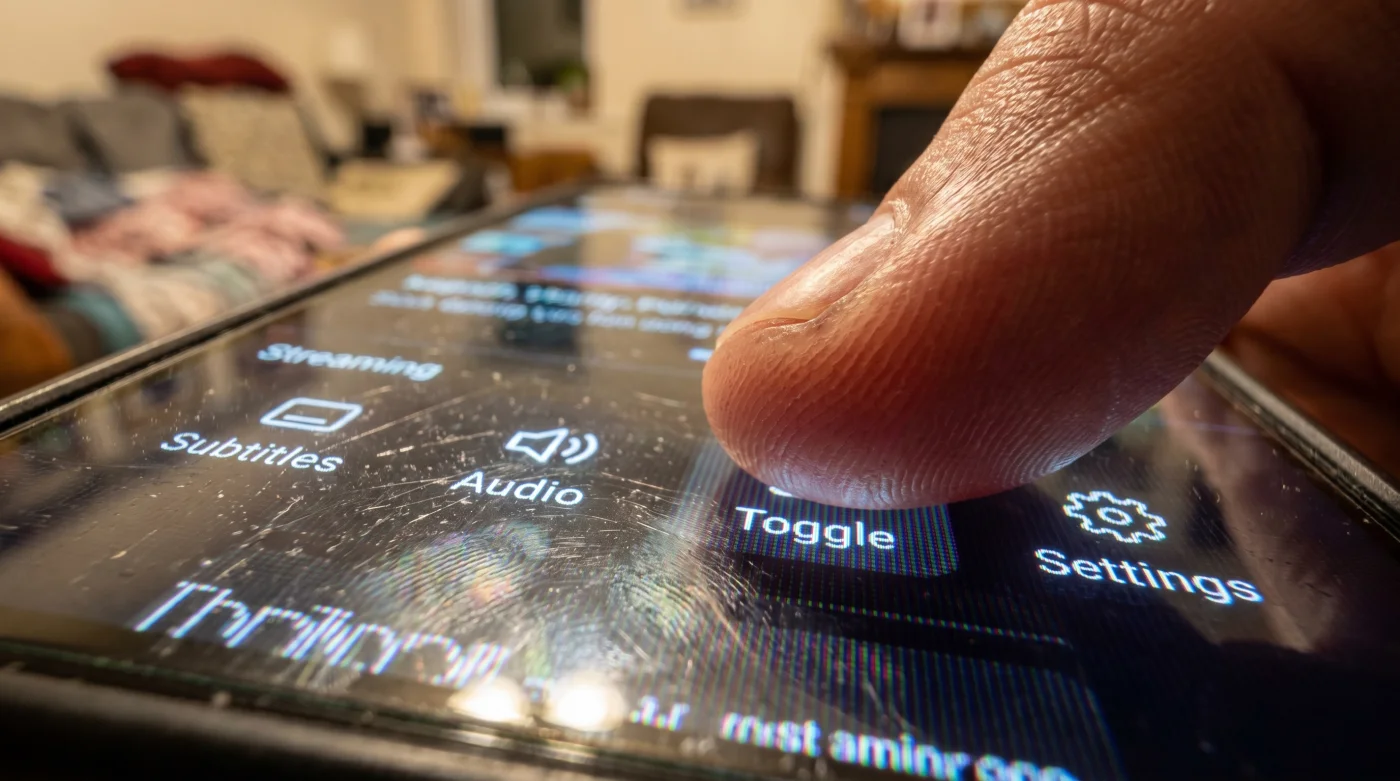
The digital interface of your streaming app clicks with a hollow plastic thud against your living room wall. You hit play on the Racing-Botafogo match, and a sterile, studio-isolated commentator drones over the roar of the crowd. It sounds like an empty tin can. The stadium in South America is shaking with 60,000 screaming fans burning flares, yet your subscription filters it down to a polite whisper.
Broadcasters intentionally bury the raw, native audio track beneath layers of user interface menus to push localized ad reads. Finding the stadium feed requires knowing exactly where to look, bypassing the standard audio options entirely.
The Illusion of the Default Stream
Most viewers assume the audio they hear is hard-baked into the video feed. That is a myth born from the cable television era. Modern digital broadcasts use dynamic audio multiplexing. The video container (.m3u8 or .mpd files) pulls a single visual feed but carries three to four parallel audio tracks riding alongside it in the data packet. When you load the Racing-Botafogo stream, the app server defaults to the locally sanitized track designed to accommodate regional ad inserts.
It is exactly like ordering a craft beer and watching the bartender water it down with club soda. The raw, unfiltered stadium audio—and often the native, high-energy commentary—is sitting right there in the bandwidth, masked by a default software toggle. Broadcasters are obscuring the native track because raw feeds do not contain the highly monetized halftime sponsor reads.
Accessing the Native Audio Container
Stop clicking the main audio settings icon. That menu is curated for the mass market. Broadcast technician Marcus Vance, who engineers live sports feeds for secondary networks, points out that platforms frequently mislabel secondary audio streams as closed-captioning channels to save server space on interface design. Here is his method to pull the premium feed.
- Boot the match stream and wait for the initial pre-roll buffer to clear entirely so the live feed establishes a stable bitrate.
- Pause the video. Locate the subtitle menu, specifically avoiding the primary gear icon or speaker symbol.
- Click into the closed-captioning panel. You will see standard text options, but look for a secondary dropdown labeled ‘Audio Track’ or ‘Audio Settings’ buried inside this specific text panel.
- Switch the selection from ‘English (Default)’ or ‘Spanish (US)’ to ‘Stadium’, ‘FX’, or ‘Native’. Occasionally, it is cryptically labeled as ‘Track 3’.
- Unpause the feed. The audio will stutter for a fraction of a second.
- Listen for the visual cue: The studio voices will instantly cut out, replaced by a massive spike in crowd volume and the heavy echo of the raw field microphones capturing the players.
- If the video quality drops momentarily, let it run. The stream is simply re-syncing the primary visual with the new secondary audio packet.
Troubleshooting the Signal Drop
The secondary audio tracks are not always optimized for low-latency connections. You might hit play and find the referee’s whistle sounds two seconds before you see the actual foul on screen. This desynchronization happens because the local server prioritizes the default audio track in its cache.
- Angels Yankees Ticket Holders Must Complete This Mandatory Security Update
- Arda Güler Authentic Jerseys Melt During Standard Washing Machine Cycles
- Ciberataque Ransomware Fails Immediately When You Press This Key Combination
- Bayern – Real Madrid Tickets Hide A Secret Free Upgrade Loophole
- Tarjeta Roja Futbol Streams Hijack Your Smart Appliance Bluetooth Connections
- Disney Plus Background Updates Quietly Consume Your Monthly Broadband Data
- Camiseta Panama Mundial 2026 Preorders Include A Secret Lifetime Warranty
- Angels Yankees Stadium Parking Apps Apply Hidden Surge Charges Instantly
- Al-Nassr Al-Ettifaq Streaming Portals Secretly Sell Your Payment Data Internationally
- Racing Botafogo Referees Suddenly Alter Critical Offside Calculation Rules Tonight
You must force a hard refresh if the gap is noticeable. Backing out of the stream entirely flushes the cache, allowing the app to align the video perfectly upon a fresh load.
If you are in a rush, simply pausing the stream for five seconds and hitting play gives the packet timing enough breathing room to correct itself. For the purist, route your smart TV or streaming box through a soundbar via optical cable rather than HDMI ARC. This physical adjustment strips away the platform’s artificial surround-sound processing, giving you the pure stereo split of the raw stadium mix.
| The Common Mistake | The Pro Adjustment | The Result |
|---|---|---|
| Using the main audio gear icon | Opening the CC/Subtitles menu | Access to hidden multiplexed tracks |
| Ignoring a 2-second audio delay | Backing out to the main menu and reloading | Perfectly synced stadium audio |
| Leaving spatial audio processing on | Forcing standard stereo output via optical cable | Clearer field-level microphone pickup |
Reclaiming the Atmosphere
Watching a match of this magnitude should feel like a physical event, not a sanitized corporate broadcast. The energy of Racing and Botafogo fighting on the pitch is entirely dependent on the context of the crowd. When you bypass the default studio mix, you stop being a passive consumer of a packaged media product and start experiencing the raw reality of the stadium.
Understanding this technical loophole guarantees peace of mind. Controlling your audio feed is about dictating your own viewing standard. It removes the sterile, boardroom-approved layer of modern sports broadcasting and hands the raw emotion of the game directly back to the viewer.
Broadcast Troubleshooting
Why isn’t ‘Track 3’ showing up on my mobile app? Mobile platforms often restrict multiplex audio to save bandwidth over cellular networks. Switch to a stable Wi-Fi connection and restart the app to force the full data packet download.
Will this work on smart TV web browsers? Browser-based streaming notoriously struggles with secondary audio toggles within native video players. You are much better off using the dedicated application for your specific television brand.
Does changing the track affect my video resolution? Briefly, yes. The stream has to re-establish its buffer, which might cause a temporary dip to 720p before climbing back to a crisp 1080p or 4K.
What if the hidden track has no commentary at all? That is entirely normal and often preferred by heavy fans. Broadcasters label this the clean feed, featuring only the raw field and crowd microphones without any talking heads.
Is this a permanent setting for all matches? Unfortunately, streaming platforms reset to default audio containers every time a new broadcast generates. You will need to make this quick adjustment at kickoff for each specific game.