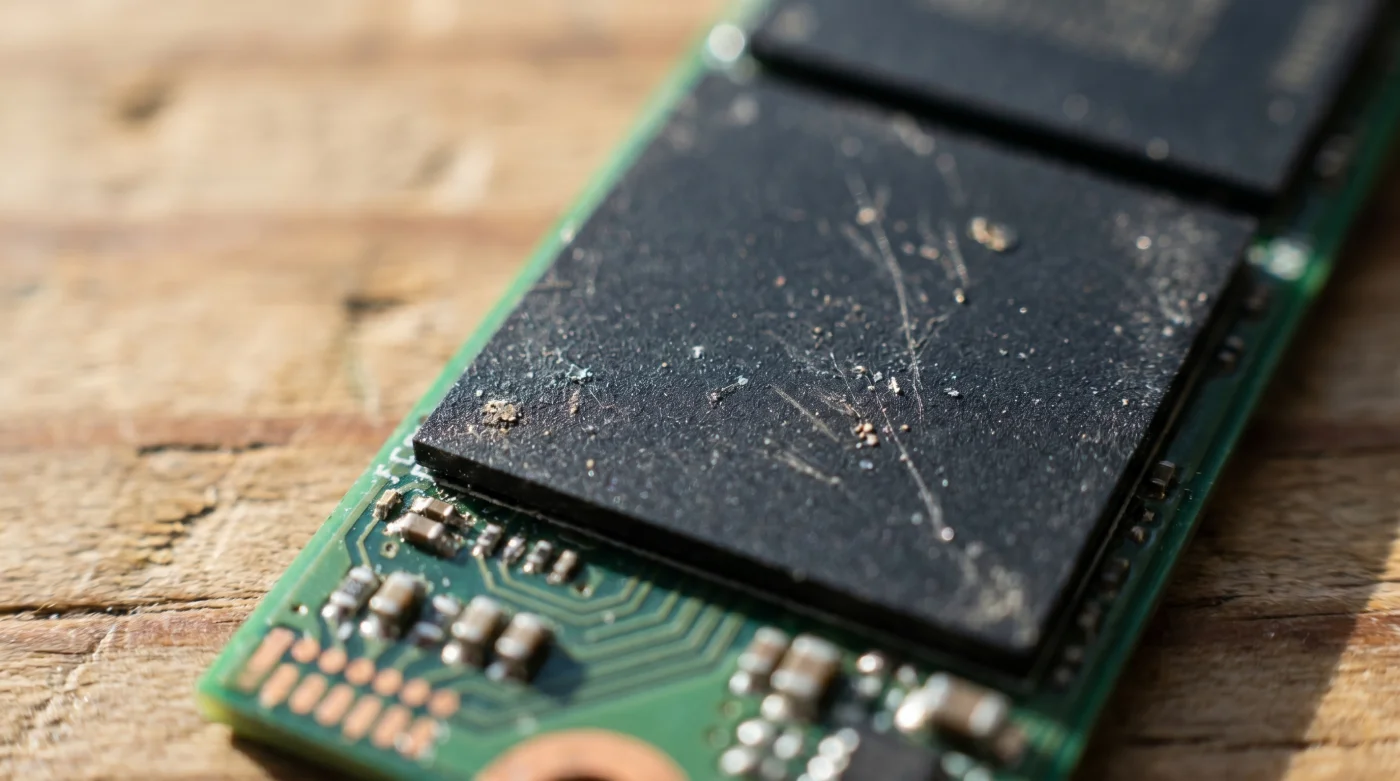
You press the power button and wait for the mechanical whir that used to define early mornings at the desk. But the spinning platters and clicking read-heads are long gone. In their place is the absolute silence of a solid state drive, a quiet block of flash memory that throws your desktop onto the screen before your coffee even finishes brewing. It is a modern marvel of electrical engineering, entirely devoid of moving parts, relying instead on electrons trapped in microscopic grids.
It is a frictionless experience, at least in the beginning. But as the months turn into years, you might notice a subtle hesitation. A heavy software suite takes an extra beat to load, or a large file transfer stutters just enough to break your concentration. It feels like digital fatigue, a creeping sluggishness that betrays the promise of instantaneous computing you originally paid for.
When faced with this slowdown, your muscle memory probably betrays you. You reach for the old administrative tools, thinking the drive needs a rigorous defragmentation, a sweeping physical reorganization of scattered files. You set aside thirty minutes for a progress bar to slowly inch across your screen, assuming you are performing good maintenance.
Treating modern flash storage like a magnetic spinning disk is exactly how you accelerate its demise. Solid state drives do not care where a file is physically located, making defragmentation a damaging relic of the past. Instead, the true culprit is an invisible background process obsessively cataloging your files.
The Phantom Librarian
Imagine sitting at your desk, trying to write a letter, while an anxious librarian hovers over your shoulder. Every time you shift a paper, cap a pen, or toss a draft into the wastebasket, the librarian frantically updates a massive ledger. This is exactly what the native operating system search indexer does to your flash storage. It watches every single interaction, constantly rewriting its own records just in case you need to find a document later.
It operates under the assumption that you might want to search for an obscure text file at any given moment. To prepare for this hypothetical search, it continuously reads and writes tiny bits of tracking data to your drive. Over time, this relentless background write fatigue consumes the drive’s limited write-cycles and severely bottlenecks its bandwidth, keeping the hardware in a state of perpetual exhaustion.
By simply firing the phantom librarian, you eliminate the constant micro-stutters. Your operating system stops fighting itself for storage access. The drive is no longer forced to document its own existence, and the raw speed of your hardware is instantly restored.
Marcus, a 42-year-old data recovery specialist working out of a cramped, humming storefront in Austin, Texas, sees the aftermath of this misunderstanding daily. He often points to a stack of premature drive failures on his workbench, noting that users practically burn out their own hardware. They let background indexing run wild, blind to the constant strain, while simultaneously running harmful defragmentation routines they learned in the nineties.
Tailoring the Silence
Not all computer usage is identical, and understanding how this constant read-write cycle affects your specific workflow is crucial. Depending on what you ask of your machine, the background indexing process acts as a different type of friction. You have to adapt the system to serve your actual needs, rather than the default factory assumptions.
- Hyaluronic Acid Serums Cause Severe Dehydration On Dry Skin
- Ceramic Brake Pads Actually Accelerate Rotor Wear During Commutes
- Stainless Steel Pans Become Completely Nonstick With Vinegar Boiling
- Smartphone Lithium Batteries Drain Faster With Standard Case Protectors
- Merca Panama Produce Inspections Trigger Sudden Weekend Closure Alert
- Manchester United Tickets Now Require Immediate Biometric Verification Check
- Term Life Insurance Policies Hide This Instant Cash Loophole
- LED Headlight Bulbs Fail Early Without This Thermal Paste
- Microfiber Cleaning Cloths Lose Absorbency Washed With Liquid Softener
- Lithium Batteries Outlast Standard Alkaline Cells Avoiding Fast Chargers
For the digital archivist, managing tens of thousands of raw photographs or financial documents, the indexer feels like a necessary evil. However, native indexing is notoriously inefficient. Relying on lightweight, third-party search tools accesses the master file table directly, entirely bypassing the destructive cataloging process.
For the heavy editor or high-end gamer, the stakes are entirely performance-based. When you are pushing a timeline in Premiere or loading massive textures in a modern virtual world, you need every ounce of throughput your storage can provide. You cannot afford to share your data lane with an overzealous filing system.
If the operating system decides to update its index right as you hit render or transition to a new map, the collision of read and write requests creates a tangible traffic jam. Disabling the feature acts as a massive highway clearing, ensuring uninterrupted data bandwidth when you actually need it the most.
Mindful Application
Reclaiming your hardware’s efficiency is not about installing more software; it is about subtraction. You are simply removing an outdated layer of unnecessary overhead. This is a quiet, deliberate modification that requires only a few minutes, completely replacing the archaic thirty-minute defragmentation chore.
The process involves telling the operating system to stop looking over your shoulder. By severing the connection between the service and the storage hardware, you halt the invisible degradation instantly.
Here is the tactical toolkit for quieting your solid state drive:
- Press the Windows key, type ‘services.msc’, and hit Enter to open the system manager.
- Scroll down to find ‘Windows Search’, right-click the entry, and select Properties.
- Change the Startup type from ‘Automatic’ to ‘Disabled’, then click the Stop button to kill the active process.
- Next, open your File Explorer, right-click your primary drive (usually C:), and select Properties.
- Uncheck the box at the bottom that reads ‘Allow files on this drive to have contents indexed’.
- When prompted, apply the changes to all subfolders and files. If a file is currently in use by the system, simply choose ‘Ignore All’.
This process might take a few moments to apply across a heavily populated drive. Let the machine breathe while it removes the monitoring flags. Once the progress bar vanishes, the silence is purely digital.
Letting the Silicon Rest
There is a distinct satisfaction in understanding the tools you rely on every day. Instead of accepting sluggish behavior as the inevitable aging of technology, you have peered under the hood and corrected a fundamental inefficiency. You have tailored the machine to respect its own physical limitations.
You no longer have to worry that your hardware is slowly grinding itself down in the background while you read a webpage or step away for lunch. By rejecting the myth of constant optimization, you preserve the hardware’s lifespan.
Your storage can finally operate exactly as engineered: static, resting, and instantly available the absolute second you call upon it. The friction is gone, replaced by the sheer, unhindered speed of flash memory, breathing easily without the weight of an endless catalog.
The most effective way to extend the life of modern flash storage isn’t to constantly manage it, but to stop your operating system from obsessively tracking it.
| Action | Detail | Added Value for the Reader |
|---|---|---|
| Disabling Search Indexer | Stops continuous background read/write logging. | Instantly frees up system resources and bandwidth. |
| Ignoring Defragmentation | Accepts that flash memory lacks moving physical parts. | Prevents unnecessary wear on finite write-cycles. |
| Using Master File Table Search | Adopting third-party tools (like Everything) for file finding. | Lightning-fast searches without the destructive indexing overhead. |
Common Questions
Will disabling indexing mean I can no longer search for files?
No. You can still search for files perfectly fine. The operating system will just search the directory structure in real-time, which on a fast flash drive, takes mere seconds rather than relying on a pre-built, constantly updating database.Is defragmentation ever useful for modern storage?
Only for older, mechanical hard drives with spinning platters. For modern flash memory, it is actively harmful and degrades the lifespan of the fragile memory cells.How long does it take to apply the indexing changes?
Disabling the service is instantaneous. Unchecking the drive property might take anywhere from a few seconds to five minutes depending on how many files are currently stored on the disk.Will this affect my gaming frame rates?
It will resolve the micro-stutters and sudden drops in performance caused by background storage bottlenecks, resulting in much smoother gameplay and faster asset load times.Do I need to repeat this after system updates?
Major operating system upgrades occasionally reset service preferences. It is worth checking your service manager once a year to ensure the search indexer remains quietly disabled.